How to Draw a Custom Business Logo with AI: A Step-by-Step Tutorial
A practical walkthrough of designing an original business logo with AI—from writing a sharp brand brief and picking a layout to customizing fonts, colors, and SVG vector files.
 Bramble & Co.
 Saltline
 Spark Lab
Most online logo makers work like a slot machine. You type your company name, pick an industry from a dropdown, and get a wall of generic stock icons pasted next to a standard web font. The icon and the typography never quite look like they belong to the same brand—because they don't.
An AI logo drawer works differently. Instead of pulling clip art from a fixed catalog, ai-logo.net plans six distinct visual concepts for your brief and draws the symbol and lettering together in one composition, then traces the artwork into clean SVG vector paths.
This step-by-step tutorial walks through how to go from a blank page to a polished, print-ready vector logo in under ten minutes.
Step 1: Write a specific business brief
When you open the logo maker, the first three fields ask for your Business name, What kind of business or industry you run, and an optional sentence on What you make or offer.
The single biggest mistake people make here is staying too broad. Our AI uses your industry and description to brainstorm concrete visual symbols before it draws a single line. If you type a vague category like "Retail" or "Food & drink," the model has to guess what you actually sell. If you tell it "Artisan sourdough bakery specializing in country loaves and laminated pastries," it immediately knows to explore wheat stalks, scored boules, baker's peels, and warm hearth motifs.
Business: Food business
Description: High-quality local products for everyday customers.
Result: Generic forks, plates, or abstract swirls that could belong to any catering company.
Business: Sourdough bakery
Description: Crusty wood-fired loaves, croissants, and morning espresso.
Result: Distinct, recognizable symbols—scored bread loaves, wheat ears, and warm vintage badges.
Step 2: Choose a logo layout (or mix it up)
Next, you'll choose how your name and symbol sit together. If you're still exploring, leave Mix it up selected—each batch of six concepts will spread across different layouts so you can see what flatters your business name best.
If you already know where your logo will appear most often, you can lock in one of the five core layouts right away:
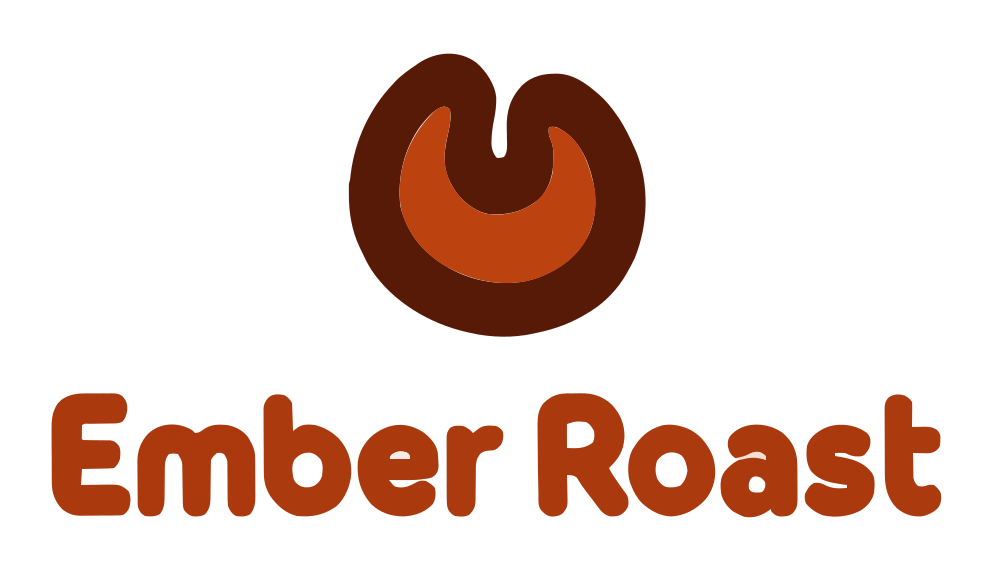
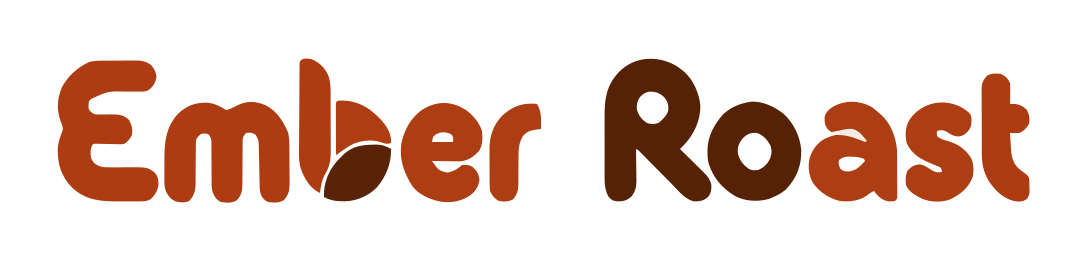
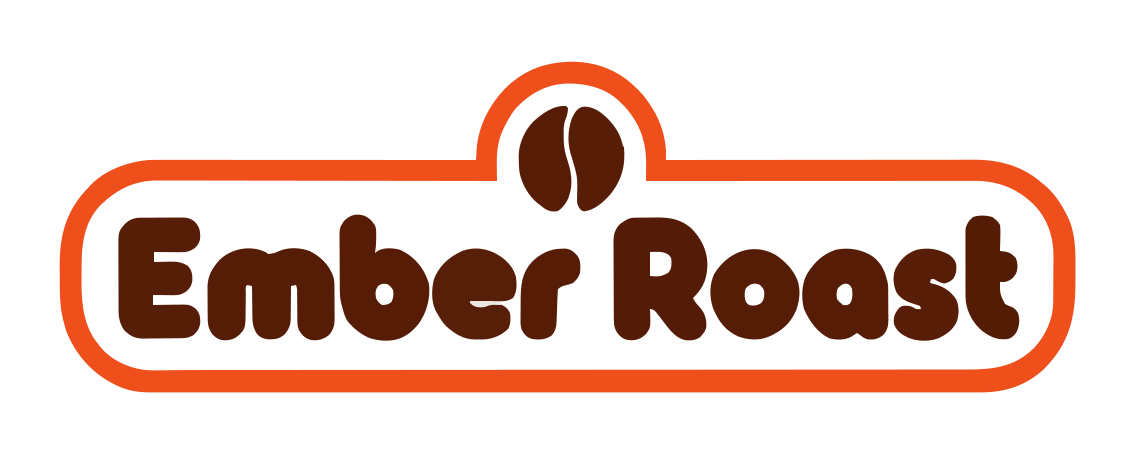
- Short, punchy names (1–2 words): Work beautifully in Badges, Wordmarks, or Icon + name lockups.
- Longer or formal names (3+ words): Often look cleanest as an Icon + name or a Letter mark monogram where the initials carry the icon weight.
Step 3: Match the visual style to your brand voice
In traditional design software, choosing a font and choosing an illustration style are two separate steps. On ai-logo.net, each of the six visual styles governs both the stroke weight of the icon and the character of the lettering:
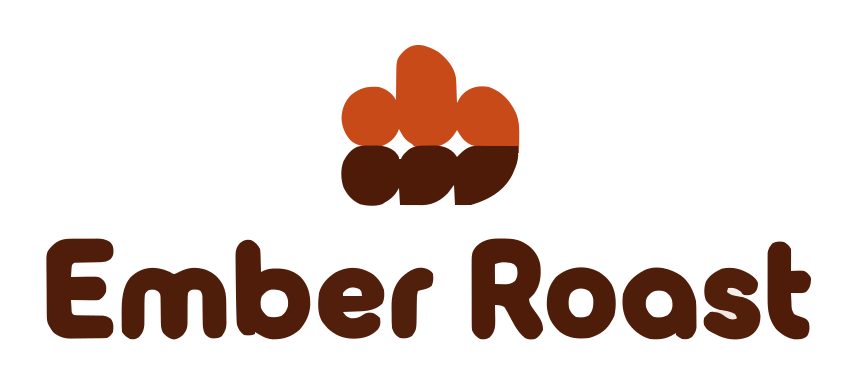
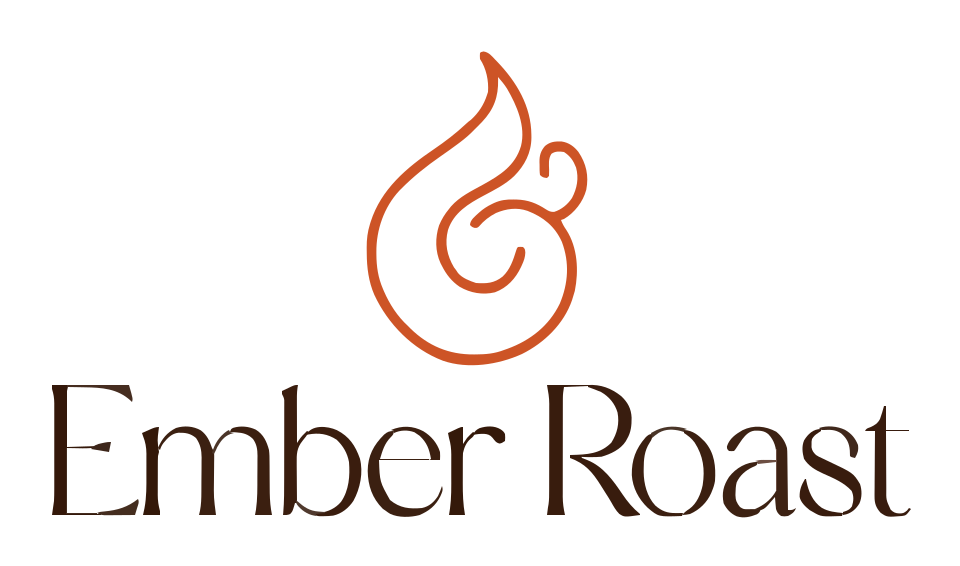
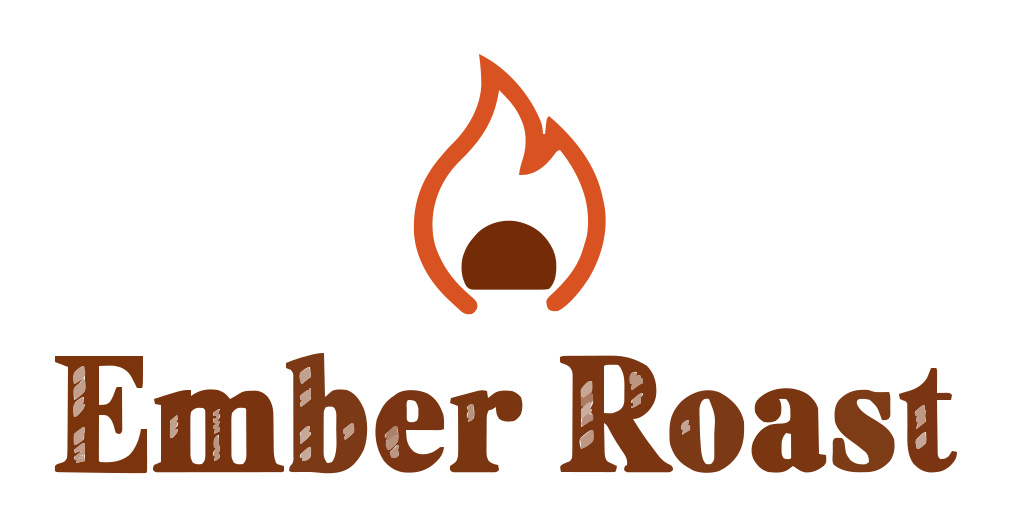
Ask yourself how a customer should feel in the first two seconds of seeing your sign or landing page. A neighborhood dog groomer or café almost always benefits from Friendly or Playful curves, while a law practice, boutique hotel, or skincare line feels right at home in Elegant or Minimal.
Step 4: Generate batches and steer the symbol
Click Draw my logos and the AI will draw your first six original concepts. Behind the scenes, the planner deliberately gives each slot in the batch a different icon idea—and remembers what it already drew—so clicking Draw 6 more always explores fresh metaphors instead of repeating the same shape.
Once your first batch appears, look at the toolbar at the top of the results page. Click Symbol to switch from automatic AI planning to a custom symbol description (like "a crescent moon tucked inside a coffee mug"), or upload your own PNG/SVG sketch to have the AI draw matching wordmark lettering around it.
Step 5: Refine typography, layout, and colors in the editor
When a concept catches your eye, hover over the card and click the Edit button (or click the artwork to inspect it full-screen first). The interactive vector editor separates your logo into its icon and lettering layers so you can fine-tune every detail without losing the original drawing:
- Test alternate layouts: Flip the icon from top-stacked to left-aligned, try an icon-only mark, or adjust spacing with one click.
- Swap fonts: Compare 16 curated typefaces—from geometric sans-serifs like Space Grotesk and Outfit to classic serifs like Playfair Display and Cormorant Garamond—while keeping your custom-drawn icon intact.
- Recolor individual pieces: Apply curated two-tone palettes or click individual color swatches to dial in exact hex values.
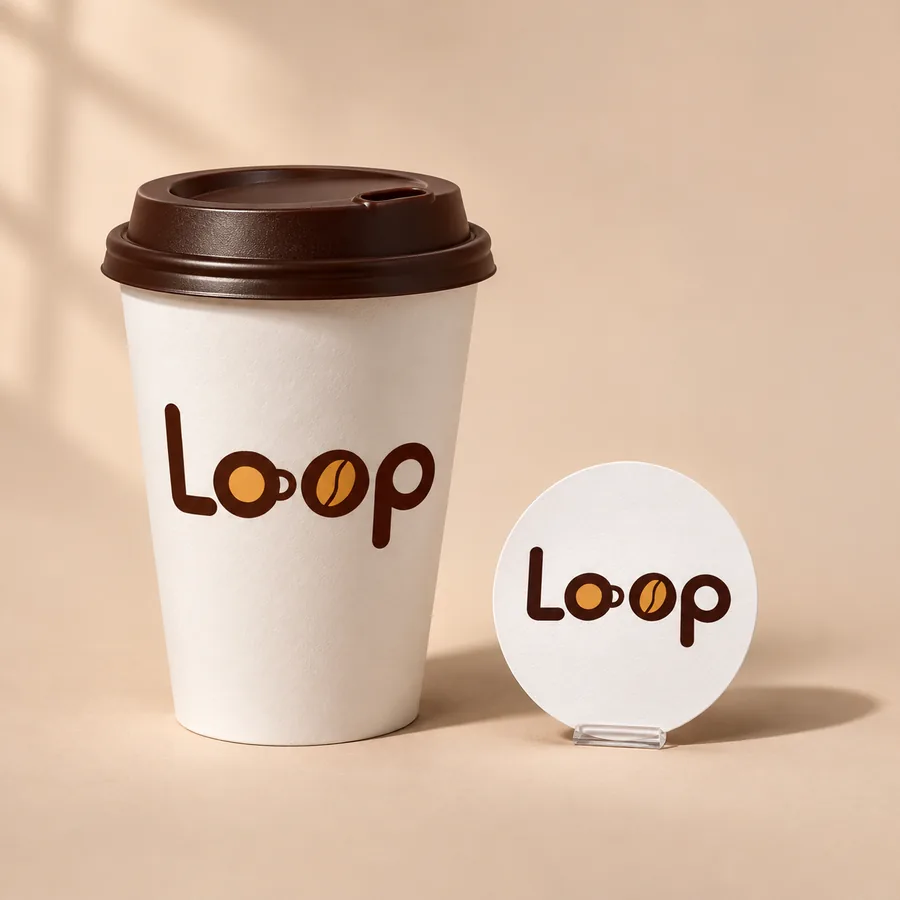
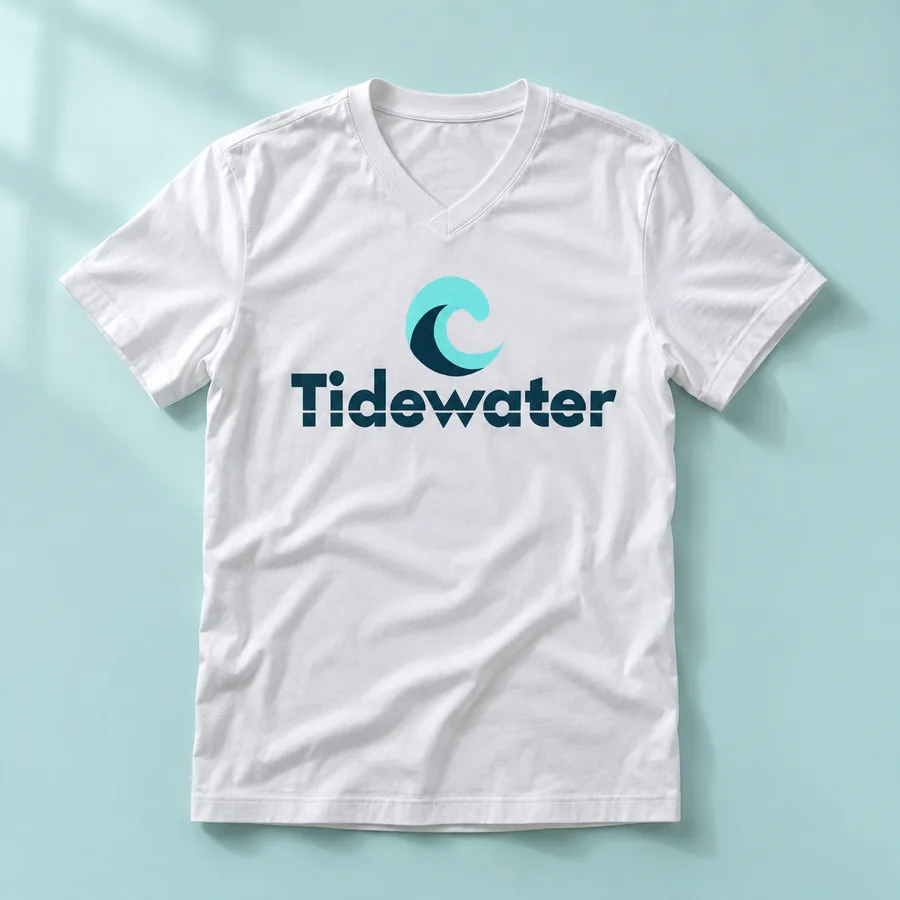
- Preview on real products: Click Preview inside the editor to see your mark printed on a takeaway coffee cup, kraft paper bag, apparel, and storefront signage before you commit.

Step 6: Save your contenders and export vector files
Don't feel pressured to pick on the first try. Click the bookmark icon on any card to save contenders to My logos, then sleep on them or compare them side by side on your phone and laptop. When you have a winner, unlock the high-resolution transparent PNG, cutout SVG vector file, or complete Brand Kit with a single one-time purchase.